Technical Writing Sample · Developer Documentation

Poly-Glot AI Workspace: Developer Integration Guide

A practical guide to integrating MCP-compatible AI assistants with Poly-Glot AI Workspace, including architecture, tool workflows, localization, multi-model comparison, and troubleshooting.

Developer Guide Claude Integration Guide

Overview

Poly-Glot AI Workspace is an AI productivity and localization platform for creating prompts, working across multiple AI providers, and comparing model responses. The product includes more than 1,000 prompt templates, multiple input methods, and a localized interface across 38 languages.

For developer and agentic workflows, Poly-Glot exposes functionality through the Model Context Protocol (MCP). An MCP-compatible assistant can discover templates, build prompts, select languages, check subscription state, prepare multi-model comparisons, and open the broader workspace.

Core idea: users express intent in natural language while the agent coordinates discrete Poly-Glot tools behind the scenes.

Availability & Distribution

The Poly-Glot MCP server is deployed and available across multiple distribution surfaces:

Official MCP Registry

Listed on the Model Context Protocol Registry for discovery by MCP-compatible clients.

MCP.so

Published on MCP.so, a community directory of MCP servers and integrations.

Glama

Available on Glama for AI workflow orchestration and server discovery.

Hugging Face

Hosted on Hugging Face for model and tool ecosystem integration.

This is not a hypothetical integration. The Poly-Glot MCP server is deployed, registered across multiple discovery surfaces, and actively serving requests.

Architecture

Poly-Glot separates the user-facing workspace from the MCP integration layer. The integration exposes focused tools that can be composed into agent workflows.

Developer / User
       |
       v
MCP-Compatible AI Assistant
       |
       | Model Context Protocol
       v
Poly-Glot MCP Server
       |
       +---- search_templates
       +---- get_template
       +---- build_prompt
       +---- prepare_compare
       +---- get_language_options
       +---- get_subscription_status
       +---- open_workspace
       +---- transcribe_audio
       +---- detect_language
       +---- translate_text
       +---- localize_text
       +---- get_custom_model_capabilities
       +---- validate_custom_model
       +---- run_custom_model
       +---- prepare_custom_compare
       |
       v
Poly-Glot AI Workspace

This design reduces manual steps. Instead of locating a template, copying it, filling variables, and then setting up multiple model sessions, an agent can orchestrate those actions as tool calls.

MCP Endpoint

Poly-Glot publishes the following MCP endpoint for compatible clients:

https://br-steep-leaf-ae2o29qz-mcp.compute.c-2.us-east-2.aws.neon.tech/mcp

Use this endpoint only with MCP-compatible clients that allow custom connectors.

MCP Tool Reference (15 Tools)

Poly-Glot exposes 15 primary tools through MCP: 7 interactive tools for template workflows, 4 language processing tools, and 4 Bring Your Own Model (BYOM) tools.

Interactive Tools (7)

search_templates

Searches the Poly-Glot prompt library by task or topic.

Find templates for writing a LinkedIn post.
Search for coding templates.
Find a template for salary negotiation.

get_template

Retrieves the selected template after discovery. A common pattern is search_templates followed by get_template.

build_prompt

Populates a selected template using user-provided requirements and produces a completed prompt for downstream use.

prepare_compare

Prepares the same prompt for side-by-side evaluation across multiple AI providers. Poly-Glot Compare Mode supports workflows spanning 2 to 9 AIs.

get_language_options

Returns supported language options. Poly-Glot supports 38 languages across interface and output workflows.

get_subscription_status

Checks the user's current Poly-Glot plan or subscription state before gated functionality is used.

open_workspace

Transitions the user from an MCP-driven conversational workflow into the full Poly-Glot Workspace.

Language Processing Tools (4)

transcribe_audio

Transcribes supplied audio for cross-platform Poly-Glot workflows. Accepts an HTTPS audio URL or base64-encoded audio data. Supports optional language hints and language detection.

Transcribe this audio file for me.
Convert this voice memo to text.

detect_language

Detects the language of supplied text and maps it to a supported Poly-Glot language. Useful for routing multilingual input to the correct workflow.

What language is this text in?
Detect the language before translating.

translate_text

Translates text into a supported Poly-Glot language. Preserves meaning, formatting, names, code, and URLs.

Translate this email to Spanish.
Convert this paragraph to Japanese.

localize_text

Localizes text for a target language, locale, audience, and tone — not merely literal translation. Adapts idioms, cultural references, and register for the target audience.

Localize this marketing copy for a German audience.
Adapt this message for a formal Japanese business context.

Bring Your Own Model (BYOM) Tools (4)

get_custom_model_capabilities

Returns the capabilities and connection requirements for developer-controlled models, including supported BYOM endpoint patterns and Poly-Glot integration behavior.

validate_custom_model

Validates a developer-supplied HTTPS model endpoint before execution. Poly-Glot applies endpoint safety checks and does not persist raw provider API keys in Neon.

run_custom_model

Runs a Poly-Glot prompt against a developer-controlled model while preserving Poly-Glot prompt construction, localization, entitlement, and orchestration workflows.

prepare_custom_compare

Prepares a Compare Mode workflow that can include a developer-controlled model alongside supported built-in AI providers.

Bring Your Own Model (BYOM)

BYOM extends the same Poly-Glot MCP platform to developer-controlled models. Teams can connect private, fine-tuned, self-hosted, enterprise, or third-party models and use them with Poly-Glot prompt workflows, 38-language localization, and Compare Mode.

One MCP implementation: BYOM is implemented once in the production Poly-Glot MCP server. The same server is then available through the Official MCP Registry, MCP.so, Glama, Hugging Face, Claude, and other compatible MCP clients.

OpenAI-compatible endpoints

Connect compatible hosted models by providing the endpoint, model identifier, and transient credentials required for the request.

Custom HTTPS REST endpoints

Poly-Glot can adapt supported developer endpoints while enforcing HTTPS, request limits, endpoint validation, and safe redirect behavior.

Compare with your own model

Use prepare_custom_compare to evaluate a BYOM model alongside supported Poly-Glot providers using the same prompt and localization context.

Credential privacy

Raw API keys, bearer tokens, and authorization headers are not stored in ordinary Neon database tables. Credentials are supplied transiently or through an approved secrets mechanism.

BYOM request path

Developer / MCP Client
        |
        v
Poly-Glot MCP Server
        |
        +---- prompt building + localization
        +---- endpoint validation + entitlements
        +---- BYOM adapter
        |
        v
Developer-Controlled Model Endpoint
        |
        v
Poly-Glot Compare / Response Workflow

Neon stores configuration, entitlement state, and analytics metadata.
Raw provider credentials are not persisted.

Localhost, .local, loopback, RFC1918/private-network, link-local, and cloud metadata endpoints are blocked from the public remote MCP path. A local/private model must be exposed through a secure supported HTTPS endpoint or a future local bridge.

Example: Build a Developer Prompt

A user can describe an outcome without knowing the underlying tool names:

Search Poly-Glot for LinkedIn templates and build me
one about AI productivity.
User request
     |
     v
search_templates
     |
     v
get_template
     |
     v
build_prompt
     |
     v
Completed prompt

The agent handles template discovery and construction while the user remains focused on the desired outcome.

Example: Compare Multiple Models

After building a prompt, a user can extend the workflow:

Now compare that across ChatGPT, Claude, and Gemini.

The agent can invoke prepare_compare and stage the prompt for the selected providers.

User
 |
 | "Compare it across ChatGPT, Claude, and Gemini."
 v
prepare_compare
 |
 v
Poly-Glot Workspace
 |
 +---- ChatGPT
 +---- Claude
 +---- Gemini
 |
 v
Human evaluation

This preserves human judgment at the end of the workflow: the system prepares alternatives, but the user decides which response best satisfies the task.

Localization Workflow

Localization is a first-class workflow rather than an output-only translation step. Poly-Glot distinguishes between application language and requested AI output language.

User intent
    |
    v
get_language_options
    |
    v
Select supported language
    |
    v
search_templates
    |
    v
get_template
    |
    v
build_prompt
    |
    v
AI workflow

This allows multilingual behavior to be incorporated into orchestration rather than added only after content generation.

Privacy and Execution Model

The native Poly-Glot application is designed around local workflows. MCP integrations introduce an external assistant and MCP service into the execution path, so developers should evaluate the privacy and data-handling policies of the client and AI provider they use.

Native workflow
User --> Poly-Glot --> User-selected AI experience

MCP workflow
User --> MCP Client --> Poly-Glot MCP Server
              |
              +--> AI assistant

Integration Design Principles

Intent over implementation

Users state goals while the agent selects and sequences tools.

Composable tools

Discovery, retrieval, construction, localization, comparison, entitlement, and workspace access remain separate capabilities.

Human in the loop

Multi-model comparison preserves human evaluation instead of assuming a single model is always best.

Progressive interaction

A task can begin conversationally and transition into the full workspace when a richer interface is useful.

Troubleshooting

Poly-Glot tools do not appear

Confirm that the MCP endpoint is correct and that the connector is enabled in the client.

A template cannot be found

Use a broader, task-oriented search rather than an exact template title.

Find a template for creating developer documentation.

Compare Mode does not include the expected provider

Confirm that the intended providers were selected when the comparison was prepared.

The requested language is unavailable

Use get_language_options to determine currently supported languages.

A feature is unavailable for the current account

Use get_subscription_status before proceeding with gated functionality.

Developer Workflow Summary

1.  Receive user intent
           |
2.  Discover template       -> search_templates
           |
3.  Retrieve template       -> get_template
           |
4.  Determine language      -> get_language_options
           |
5.  Detect input language   -> detect_language
           |
6.  Construct prompt        -> build_prompt
           |
7.  Translate output        -> translate_text
           |
8.  Localize output         -> localize_text
           |
9.  Transcribe audio input  -> transcribe_audio
           |
10. Prepare providers       -> prepare_compare
           |
11. Open workspace          -> open_workspace
           |
12. Compare outputs
           |
13. Human selects result

This architecture turns a prompt library into a set of agent-accessible, composable capabilities while preserving human control over the final output.

About This Sample

Poly-Glot AI Workspace: Developer Integration Guide is an independent technical writing sample based on the publicly documented Poly-Glot AI Workspace product and MCP integration.

It demonstrates developer documentation, information architecture, procedural documentation, conceptual documentation, API/tool reference organization, AI workflow documentation, localization concepts, and docs-as-code-oriented content design.

Author: Harold Moses II
Product: Poly-Glot AI Workspace
Reference: hmoses.github.io/poly-glot-site

Developer DocsMCPAgentic AIDocs-as-CodeLocalizationMulti-Model Workflows
Overview

Poly-Glot connects to Claude through MCP (Model Context Protocol) — Anthropic's standard for connecting AI assistants to external tools. Once connected, Claude can search 1,000+ prompt templates, build prompts, compare model responses, and check subscription status — all from within your chat. No app download required.

How it works: You add Poly-Glot as a connector in Claude's settings. Claude calls Poly-Glot's tools behind the scenes and presents results inline in your conversation. There is no separate GUI — everything happens in the chat interface.

Prerequisites

Claude Desktop App or Claude.ai

Works with Claude Free, Pro, Team, and Enterprise plans. Both the desktop app and web interface support MCP connectors.

MCP Endpoint URL

You will need the Poly-Glot MCP endpoint. Copy it from the setup section below.

Setup (Step by Step)

1

Open Claude Settings

In Claude Desktop, click your profile icon in the bottom-left corner, then select Settings. On Claude.ai, navigate to claude.ai/settings.

2

Go to Connectors

In the left sidebar under Customize, click Connectors. This is where all MCP integrations are managed — alongside GitHub, Gmail, Google Drive, and others.

3

Click "+ Add" and select "Add custom connector"

Click the + Add button in the top-right corner of the Connectors panel. Select Add custom connector from the dropdown.

4

Name it and paste the MCP endpoint

Enter Poly-Glot as the connector name. Paste the following URL into the endpoint field:

https://br-steep-leaf-ae2o29qz-mcp.compute.c-2.us-east-2.aws.neon.tech/mcp
5

Set Authentication to "None / Detected"

Under Authentication, select None / Detected. The Poly-Glot MCP server is a public tool server — no API key or OAuth is required. The yellow warning about open access is expected and safe to proceed past.

6

Save the connector

Click Save (or Add). The connector will appear in your Connectors list. Claude will display Poly-Glot's tools with a Needs approval badge — this is normal. Claude will ask permission the first time you use each tool.

7

Start a conversation

Open a new Claude conversation and try a prompt like:

Search Poly-Glot for email templates

Claude will ask to use the Poly-Glot tools. Click Allow and you are live.

Available Tools (11)

Once connected, Claude has access to 15 tools: 7 interactive tools for template workflows, 4 language processing tools, and 4 BYOM (Bring Your Own Model) tools.

Interactive Tools (7)

ToolDescriptionExample Prompt
Search Poly-Glot templatesBrowse 1,000+ prompt templates by keyword or category"Search Poly-Glot for marketing templates"
Open a Poly-Glot templatePull up a specific template with full details and variables"Open the LinkedIn headline template"
Build a Poly-Glot promptFill in a template and generate a ready-to-use prompt"Build me a prompt for a cold outreach email"
Prepare Poly-Glot Compare ModeStage a prompt for side-by-side comparison across 2–9 AI providers"Compare this prompt across GPT-4 and Claude"
Get Poly-Glot language optionsList all 38 supported languages"What languages does Poly-Glot support?"
Get Poly-Glot subscription statusCheck your current plan (Free, Trial, or Pro)"Am I on the free or Pro plan?"
Open Poly-Glot AI WorkspaceDeep-link into the full Poly-Glot application"Open Poly-Glot"

Language Processing Tools (4)

ToolDescriptionExample Prompt
Transcribe audioTranscribe audio from a URL or base64 data with optional language detection"Transcribe this audio file for me"
Detect languageIdentify the language of any text and map it to a Poly-Glot language"What language is this text in?"
Translate textTranslate text into any of 38 languages, preserving formatting and code"Translate this email to Spanish"
Localize textAdapt text for a target locale, audience, and tone — beyond literal translation"Localize this for a Japanese business audience"

BYOM with Claude

Claude connects to the same production Poly-Glot MCP server used by the other Poly-Glot MCP distribution surfaces. There is no separate Claude BYOM backend. What differs is the Claude client experience: connection setup, tool discovery, permission prompts, and how Claude invokes the MCP tools during a conversation.

Claude-specific behavior: once the BYOM tools are deployed to Poly-Glot, Claude can discover and invoke get_custom_model_capabilities, validate_custom_model, run_custom_model, and prepare_custom_compare through the existing Poly-Glot MCP connection, subject to Claude's tool approval and permission flow.

Use Claude as the MCP client

Claude orchestrates Poly-Glot MCP calls while the Poly-Glot server performs prompt preparation, localization, entitlement checks, BYOM endpoint validation, and model routing.

Compare Claude and BYOM models

A developer-controlled model can participate in Poly-Glot Compare Mode alongside Claude and other supported providers without requiring a separate BYOM database or MCP deployment.

Example Claude request

You
Use Poly-Glot to validate my custom model endpoint, localize this prompt to Spanish, and prepare a comparison between my model and Claude.
Claude
Claude can coordinate the Poly-Glot tools for endpoint validation, localization, BYOM execution/compare preparation, and entitlement checks. Tool approval behavior follows the Claude MCP client experience.

Credentials and permissions

Do not save raw model API keys in Poly-Glot's Neon tables. BYOM credentials should be supplied transiently or through an approved secrets mechanism. Claude's own MCP permissions remain separate from Poly-Glot's server-side endpoint validation and subscription controls.

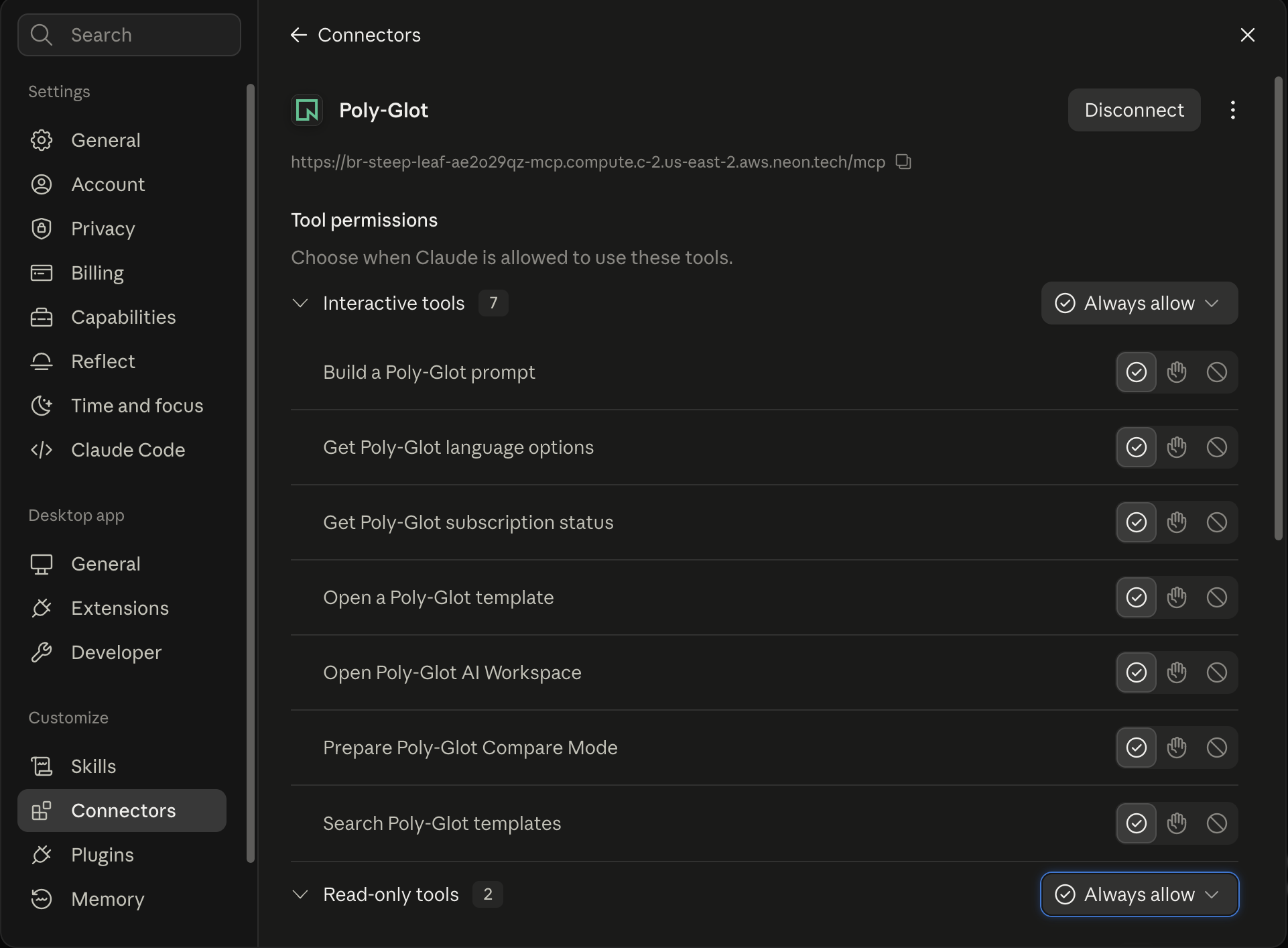
Tool Permissions

Claude shows each tool with a permission control. You can configure when Claude is allowed to use each tool:

Claude Desktop Connectors panel showing Poly-Glot MCP with Interactive tools and Read-only tools
Claude Desktop → Settings → Connectors → Poly-Glot — showing tool permissions

Needs approval (default)

Claude asks for your confirmation before calling the tool. Recommended for first-time use so you can see what data is being sent.

Always allow

Claude uses the tool automatically without asking. Set this for tools you use frequently, like search_templates and build_prompt.

To change permissions: go to Settings → Connectors → Poly-Glot and use the toggle icons next to each tool.

Example Conversation

Here is a typical interaction. You type natural language and Claude calls the appropriate Poly-Glot tools behind the scenes:

You
Search Poly-Glot for LinkedIn templates and build me one about AI productivity
Claude (calls search_templates → get_template → build_prompt)
I found the LinkedIn Post Writer template. Here's your prompt:

"Write a LinkedIn post about AI productivity tools that are changing how teams work. Use a professional but conversational tone. Goal: thought leadership. Include a call-to-action to comment with their favorite AI tool. Keep it under 200 words."
You
Now compare that prompt across ChatGPT, Claude, and Gemini
Claude (calls prepare_compare)
Done! I've opened the Poly-Glot workspace with your prompt staged for ChatGPT, Claude, and Gemini. Click each tab to compare responses side by side.
You
What languages does Poly-Glot support?
Claude (calls get_language_options)
Poly-Glot supports 38 languages including English, Español, Français, Deutsch, 日本語, 한국어, 中文, العربية, हिन्दी, and 29 more. You can set your UI language, input language, and output language independently.

Entitlements & Paywall

The same subscription model applies whether you use Poly-Glot through the iOS/macOS app or through Claude via MCP. Entitlements are enforced server-side — they cannot be bypassed by the client.

Free

Discovery & Read-Only

  • Search all 1,022 templates
  • View template descriptions
  • Browse 38 language options
  • Check subscription status
  • Open workspace
  • BYOM endpoint info & validation
  • Send to 1 AI (starts trial)
  • Compare Mode (locked)
  • Language processing (locked)
  • BYOM execution (locked)
Trial (3 days)

Full Access

  • All 1,022 templates
  • Unlimited sends
  • Compare Mode (up to 9 providers)
  • Transcription, translation, detection, localization
  • BYOM model execution & custom compare
  • All 38 languages
  • Starts on first use of a free template
Expired (post-trial)

1 Free Send/Week

  • Browse & search all templates
  • Open free templates
  • Send to 1 AI — 1 per week
  • Copy prompt — 1 per week
  • Compare Mode (Pro only)
  • Pro templates (locked)
  • Language processing (locked)
  • BYOM execution (locked)
  • Subscribe for unlimited access
Pro

$9.99/mo or $79.99/yr

  • Everything in Trial — unlimited
  • All Pro-only templates
  • Unlimited prompt builds
  • Unlimited Compare Mode runs
  • Unlimited language processing
  • Unlimited BYOM execution
  • Save 33% with annual plan

When a feature is gated, Claude will tell the user why and include pricing information in its response:

Claude (tool returns locked status)
This template requires a Poly-Glot Pro subscription. After your trial, you get 1 free send per week to any single AI. Plans start at $9.99/month or $79.99/year (save 33%). Subscribe at poly-glot.ai to unlock unlimited sends, Compare Mode, language processing, BYOM, and all 1,022 templates.

38 Languages Supported

Set your UI language, input language, and output language independently. Every template works in every language.

English · Español · Français · Deutsch · Italiano · Português · 日本語 · 한국어 · 中文(简体) · 中文(繁體) · العربية · हिन्दी · Türkçe · Русский · Polski · Nederlands · Svenska · Dansk · Norsk · Suomi · Čeština · Magyar · Română · Українська · Ελληνικά · עברית · ไทย · Tiếng Việt · Bahasa Indonesia · Bahasa Melayu · Filipino · Català · Hrvatski · Slovenčina · Български · Lietuvių · Latviešu · Eesti

FAQ

Is there a separate GUI inside Claude?

No. Poly-Glot tools are accessed entirely through natural language in the Claude chat interface. Claude calls the tools behind the scenes and presents results inline. There is no embedded widget or separate window.

Do I need to download the Poly-Glot app?

No. MCP works independently — connect directly from Claude. The iOS/macOS app is optional for browsing templates visually and managing your subscription.

Does the paywall work the same as the app?

Yes. Entitlements are enforced server-side on the MCP. The same Free, Trial, and Pro tiers apply. Users cannot bypass the paywall regardless of which client they use.

What AI providers work with Compare Mode?

Compare across any 2–9 providers: ChatGPT, Claude, Gemini, Grok, Groq, Copilot, Mistral, Perplexity, and DuckDuckGo AI.

Is my data private?

Yes. Poly-Glot does not store your prompts or conversations. Template data flows between you and your AI assistant through the MCP server. See the Privacy Policy.

Does this work on Claude.ai (web) or only the desktop app?

Both. The same MCP endpoint works in Claude Desktop and on Claude.ai. The setup steps are identical — go to Settings → Connectors → Add custom connector.

Why does Claude say "Needs approval" for each tool?

This is Claude's default security behavior. The first time Claude uses a Poly-Glot tool, it asks for your permission. You can change this to "Always allow" in Settings → Connectors → Poly-Glot for tools you use frequently.

Troubleshooting

Poly-Glot does not appear in Connectors

Confirm that you clicked + Add → Add custom connector (not one of the pre-built connectors like Gmail or GitHub). Paste the full MCP endpoint URL including https://.

Tools show "Needs approval" but nothing happens

Click Allow when Claude asks to use a Poly-Glot tool. If the approval prompt does not appear, try starting a new conversation.

Claude says it cannot find any templates

Use a broader, task-oriented search rather than an exact template title. For example, say "Search for email templates" instead of the exact template name.

A feature returns a "locked" response

Check your subscription status by asking Claude "What is my Poly-Glot subscription status?" Claude will call get_subscription_status and tell you your current plan. Upgrade to Pro to unlock all features.

The connector stopped working

Go to Settings → Connectors → Poly-Glot and click Disconnect, then re-add the connector with the same endpoint URL. This refreshes the connection.